Matter is the future of smart homes, but setting it up in Apple Home can feel confusing if you don't know what you're doing. It's actually pretty straightforward once you understand what you need.
Here's everything you need to know about adding Matter devices to Apple Home.
What You Need First
iPhone, iPad, or Mac running:
- iOS 16.4 or later
- iPadOS 16.4 or later
- macOS 12.4 or later
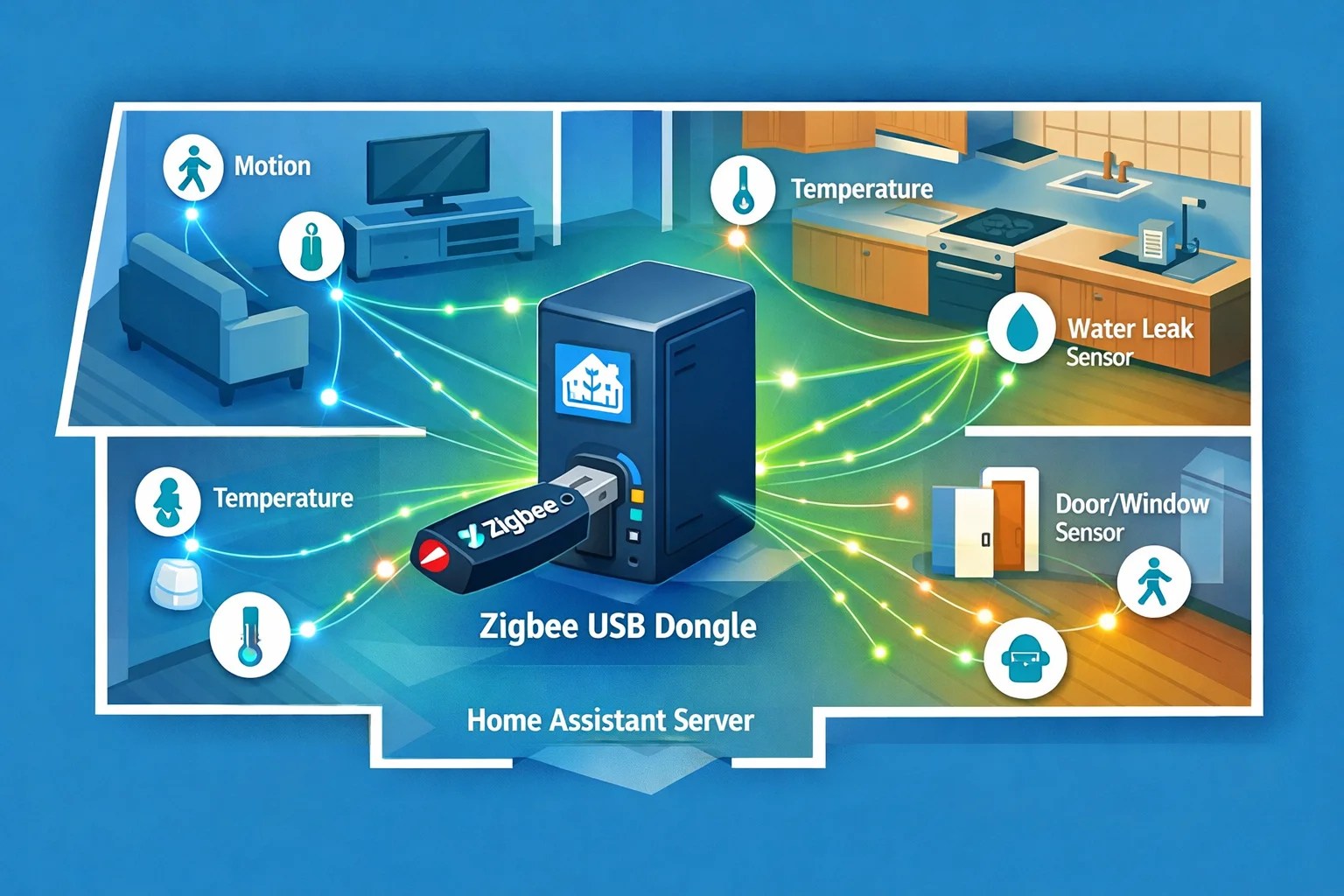
An Apple Home Hub: This is critical. You need at least one. Options are:
- HomePod mini (the easiest choice)
- Apple TV 4K (3rd gen)
- iPad running iOS 16.1+ (set as a permanent home hub)
The hub acts as a bridge between your Matter devices and the internet. It handles remote access, automations, and notifications. Without a hub, Matter devices work locally but you can't control them from outside your home.
Matter Device: Something with a Matter QR code or setup code on the box.
The Setup Process
Step 1: Prepare the Device
Unbox the Matter device and get it near your iPhone. Don't pair it yet—just have it ready and nearby.
Make sure your iPhone has Bluetooth enabled. Open your home network (not a guest network—Matter needs the main network).
Step 2: Open Home App and Scan
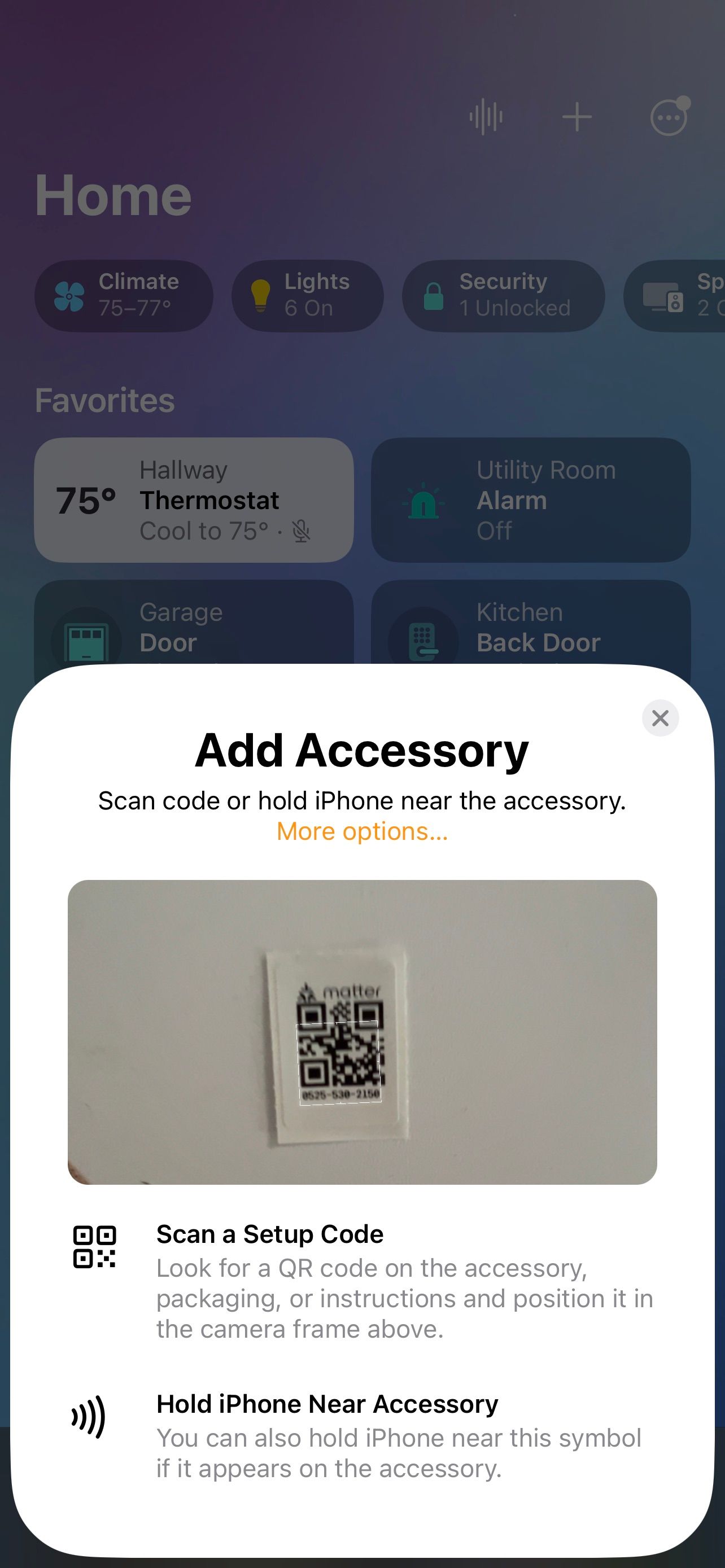
Open the Home app on your iPhone. Tap the + icon in the top right. Tap Add Accessory.
Point your iPhone camera at the Matter QR code on the device or packaging. If there's no QR code visible, look for an 8-digit setup code on the box and enter it manually.
Step 3: Wait for Pairing
This is where patience matters. Thread devices pair in seconds. Wi-Fi devices take longer—sometimes 30 seconds to a minute.
Home App will show you a progress screen. Don't close the app. Just wait. If pairing fails, you'll get an error telling you why.
Step 4: Assign to a Room
Once paired, Home App asks you which room this device is in. Pick the right room. This matters for room-based automations later.
Step 5: Name It
Give it a descriptive name. "Living Room Light" is better than "Light 1." You'll thank yourself when you're building automations.
Troubleshooting Common Issues
Device Won't Pair
Make sure Bluetooth is on. Be within 10 feet of the device. Some devices require you to put them in pairing mode first—check the manual.
If it still fails, restart the device and try again.
Pairing Works but Device Shows Offline
Your home hub might not be updated. Go to Home Settings → Home Hubs and check the hub's firmware version. If an update is available, apply it.
Also check that the hub and the device are on the same Wi-Fi network (not different 2.4/5GHz bands if they're separate SSIDs).
Can't Control Device from Away from Home
You need a home hub. If you have a hub but still can't access the device remotely, make sure the hub is online and in the same home. Tap Home Settings → Home Hubs and verify it shows "Connected" with a green checkmark.
Matter vs HomeKit: What's the Difference?
HomeKit is Apple's smart home standard from years ago. Matter is the new open standard that all platforms support.
Both show up in the Apple Home app. HomeKit-only devices and Matter devices live together just fine. If you have old HomeKit devices, they still work. New devices will be Matter.
The advantage of Matter is that you can add the same device to Google Home, Alexa, and Apple Home simultaneously. One device, three ecosystems. That's the whole point of Matter.
The Multi-Admin Game-Changer
This is the cool part. With Matter, you can add a device to multiple ecosystems at the same time.
Got a Matter light bulb? Add it to Apple Home. Then scan the same QR code into Google Home. Scan it again into Alexa. The bulb is now in all three platforms, and they all control the same physical device.
This is huge for people with multiple smart home platforms. No more choosing. Just use whatever interface you want that day.
A Few Pro Tips
Assign every Matter device to a room. This enables room-based automations and makes the Home app more organized.
Update your home hub firmware regularly. Matter support improves with each update.
Use descriptive names. Future you will be grateful.
Keep a list of Matter QR codes or setup codes somewhere safe. If you ever need to re-pair a device, you'll have the codes ready.
Final Thoughts
Matter setup in Apple Home is actually pretty painless once you have a home hub. Most devices pair in under a minute. The hardest part is just knowing what you need beforehand.
Get your home hub set up first. Then add Matter devices one at a time. Don't try to pair five devices at once—just do it gradually.
Add your first Matter device today and experience the future of smart homes.