HACS is the first add-on I install on every new Home Assistant instance. Before I add any devices, before I configure any automations — HACS goes in first.
Without HACS, you're limited to the official Home Assistant integrations and the built-in Lovelace cards. That's a lot, but it's maybe 30% of what's available. With HACS, you get access to thousands of custom integrations, frontend cards, themes, and automation blueprints that the community has built. Mushroom Cards, the cards that make most of the beautiful HA dashboards you see shared online, come from HACS. So does the Alexa Media Player integration, the Google Home integration, and dozens of other things you'll want.
Here's how to install it.
What You Need First
- A running Home Assistant instance (Home Assistant OS, Supervised, Container, or Core)
- A GitHub account — it's free if you don't have one
- Advanced Mode enabled in your HA profile (I'll show you this)
A note on installation type: This guide covers the most common installation method — Home Assistant OS or Supervised, using the Terminal & SSH add-on. If you're running HA Container or Core in Docker, the process is slightly different but the script is the same; you just run it via your Docker host's SSH connection instead.
Step 1: Enable Advanced Mode
Click your username in the bottom-left corner of the HA sidebar to open your Profile page. Scroll down until you see the Advanced Mode toggle and switch it on. Without this, certain add-ons and developer settings won't be visible.
Step 2: Install the Terminal & SSH Add-on
Go to Settings → Add-ons → Add-on Store (the store button is in the top right corner). Search for Terminal & SSH. This is the official Nabu Casa SSH add-on — not a third-party one.
Click on it, then click Install. The installation takes 30–60 seconds.
Once installed, make sure it's configured to start on boot:
- Click the Configuration tab
- Set
authorized_keysif you want external SSH access (optional for this guide) - Go back to the Info tab and toggle on Start on boot and Show in sidebar
- Click Start
Step 3: Open the Terminal
Click Terminal in your HA sidebar (it appeared after we enabled it). A terminal window opens directly in your browser. This is running on your HA device — you're connected.
You should see a prompt like:
[root@homeassistant ~]#
Step 4: Run the HACS Installation Script
In the terminal, run these two commands:
cd /config
wget -O - https://get.hacs.xyz | bash -
The first command navigates to your HA config directory. The second downloads and runs the official HACS installation script from hacs.xyz.
You'll see a bunch of output as the script runs. When it finishes, you should see something like:
INFO: Installation Complete.
INFO: HACS installed successfully.
If you see any errors, the most common issues are:
- No internet access: Make sure your HA instance can reach the internet
- Wrong directory: Make sure you're in
/config, not somewhere else - Permission error: Run
chmod +x /config/custom_componentsif needed
Step 5: Restart Home Assistant
Don't skip this. Go to Settings → System → Restart and confirm the restart. HA needs a full restart to recognize the newly installed HACS integration files.
While it's restarting, also clear your browser cache for the HA site. This is important — if you don't clear cache, HACS won't appear in the integration list. Hard refresh (Ctrl+Shift+R on Windows/Linux, Cmd+Shift+R on Mac) usually works, or clear cookies and cache for your HA domain in browser settings.
Step 6: Add the HACS Integration
After HA restarts and your browser cache is cleared, go to Settings → Devices & Services → Add Integration. Search for HACS.
Click it. You'll see a screen listing what you're agreeing to — HACS is a third-party store and Nabu Casa doesn't review the components in it. Tick the acknowledgment boxes and click Submit.
HACS uses GitHub device authentication. You'll get a code — something like ABCD-1234. Copy it. Then click the GitHub link that appears and enter that code. Sign in to your GitHub account and authorize HACS.
Come back to HA. HACS should now be authorized and appear in your integration list.
Step 7: Assign to an Area and Finish
The setup wizard will ask you to assign HACS to an area (optional) and finish setup. Click through.
You should now see HACS in your HA sidebar on the left.
Installing Your First Custom Component: Mushroom Cards
Click HACS in the sidebar. You'll see categories: Integrations, Frontend, Automations, Templates.
For Mushroom Cards, click Frontend. Search for "Mushroom". You'll find Mushroom by piitaya. Click it, then click Download (the download button in the bottom right).
After downloading, you need to reload your browser or clear cache again. Then in your dashboard editor, the Mushroom card types will appear when you add a new card.
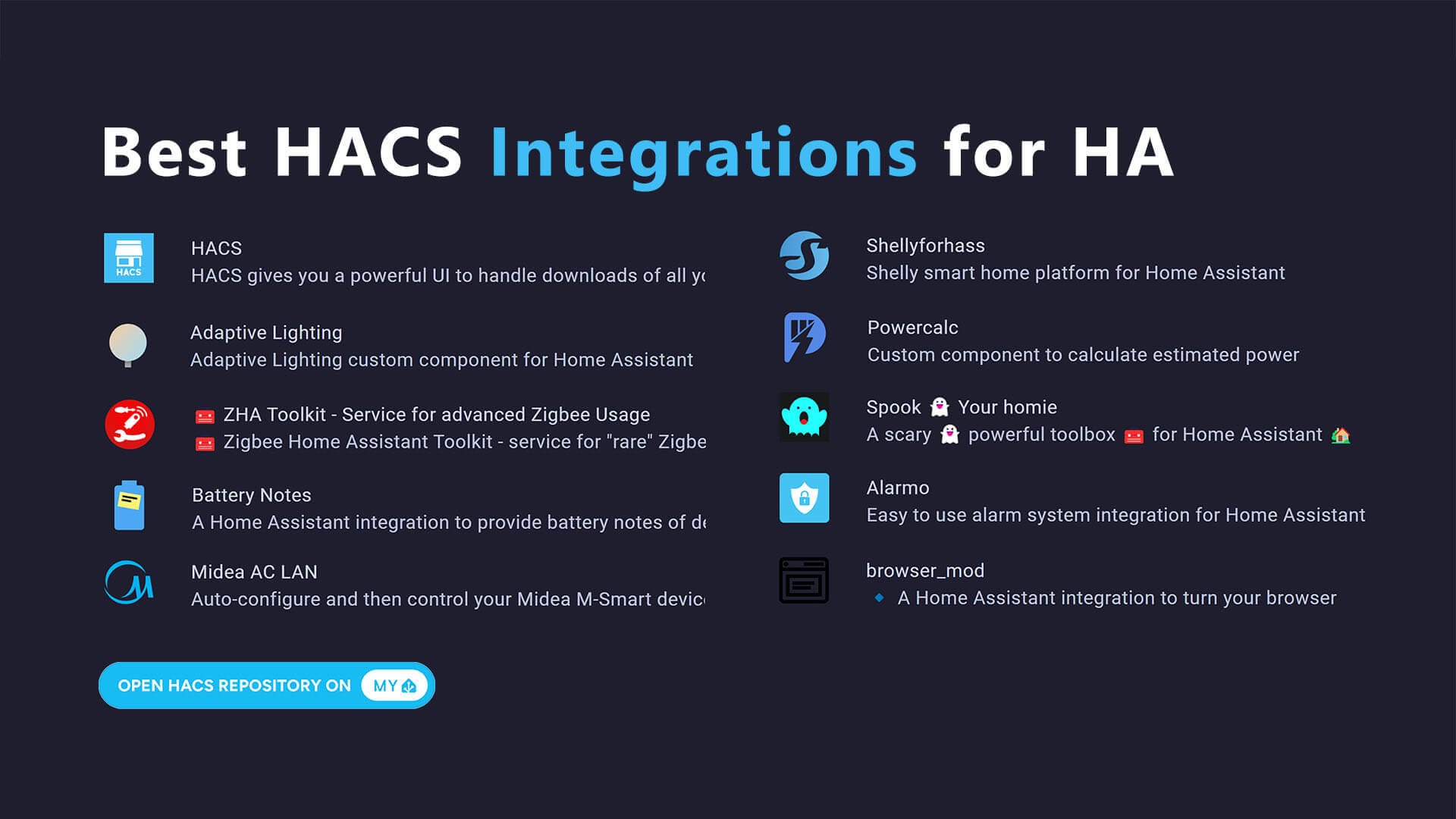
A few other highly recommended HACS frontend additions worth grabbing while you're there:
- Mini Graph Card — for compact history graphs on your dashboard
- Button Card — for highly customizable button cards with templates
- Layout Card — for organizing your dashboard into complex grid layouts
- Browser Mod — for popup dialogs and browser-specific automations
For integrations, some community favorites: Alexa Media Player, Google Home, Node-RED Companion, and HA Floorplan if you want room-based dashboards.
Keeping HACS Updated
HACS will show a notification badge when updates are available for installed components. Go to HACS → installed to see what needs updating. Updates are not automatic — you review and install them manually. This is intentional: community components can break when HA updates, so manual review is the right approach.
Check for HACS updates whenever you update Home Assistant itself. The two need to stay compatible.
That's it. HACS is installed and you've unlocked the full potential of Home Assistant's community ecosystem.