You don't have to choose between Home Assistant and Apple HomeKit. The HomeKit Bridge integration in HA lets you expose any HA entity to Apple Home, where it appears as a native HomeKit device — controllable via Siri, the Home app, and any HomeKit-enabled accessory.
I run both. My core automations and complex logic live in Home Assistant. My wife uses Apple Home to control lights, check the thermostat, and use Siri shortcuts. Both systems work simultaneously. The HomeKit Bridge is what makes this possible.
What HomeKit Bridge Actually Does
The HomeKit Bridge creates a virtual HomeKit hub inside Home Assistant. Your HA instance advertises itself as a HomeKit bridge on your local network. When you scan it with Apple Home, it adds all the devices you've configured to expose.
Those devices then live in Apple Home as if they were native HomeKit accessories. Automations in Apple Home work with them. Siri can control them. The Home app shows their status in real time.
Important caveat: The bridge requires HA to be running and on your local network for HomeKit control to work. The devices aren't natively connected to Apple's servers — they go through HA. If HA goes offline, the HomeKit devices become unresponsive in Apple Home. For this reason, I run HA on reliable hardware (Pi 5 with SSD) and have auto-restart configured.
Prerequisites
- Home Assistant OS or Supervised (Container and Core work too, but add-on management is different)
- A HomePod, HomePod mini, or Apple TV 4K set up as a Home hub (required for away-from-home access and automations)
- Home Assistant and your Apple hub on the same local network
Step 1: Install the HomeKit Bridge Integration
Go to Settings → Devices & Services → Add Integration. Search for HomeKit. You'll see two options: HomeKit (which is the bridge, for exposing HA to HomeKit) and HomeKit Device (for connecting native HomeKit devices to HA).
Select HomeKit. Click through the setup. Choose a port (the default 21063 is fine) and a name for the bridge.
HA will generate a pairing code. You'll see an 8-digit number like 123-45-678 in the notification area or on the integration config page.
Step 2: Pair with Apple Home
Open the Apple Home app on your iPhone or iPad. Tap the + button → Add Accessory. Tap More options (if your Home Hub is on the network, the bridge should appear automatically). Or tap I Don't Have a Code or Cannot Scan and enter the 8-digit pairing code manually.
If your HA instance is on the same network as your Apple devices, the bridge will appear automatically in the "Other devices" section when you tap Add Accessory.
Select the bridge, confirm the addition, and Apple Home will begin importing all the exposed devices.

Step 3: Configure Which Entities to Expose
By default, HomeKit Bridge exposes a lot of entities — potentially too many. You probably don't want your HA input_boolean.test_variable or every binary sensor appearing in Apple Home.
Go to the HomeKit Bridge integration settings. Under Entities, you can filter what's exposed by:
- Domain: Only expose certain types (lights, climate, sensors)
- Entity ID pattern: Include or exclude specific entities
- Area: Expose all devices in specific areas
My recommended approach:
- Set it to expose only the entity types you want (lights, switches, climate, covers, locks)
- Manually exclude any entities you don't want visible (like test entities or entities with ugly names)
Go to Settings → Devices & Services → HomeKit → Configure. You'll see options for Include domains/entities or Exclude specific entity IDs. This is where you fine-tune.
After making changes, you need to restart the HomeKit Bridge integration for the changes to take effect. Go to the integration card and click the three-dot menu → Reload. Then open Apple Home — new entities will appear, removed ones will go away.
What Works Well in HomeKit Bridge
Most common entity types map cleanly to HomeKit:
- Lights (light domain): On/off, brightness, color temperature, and RGB color all work. Multi-channel lights work as separate accessories.
- Switches (switch domain): On/off. Simple and reliable.
- Climate (climate domain): Temperature control, mode changes (heat/cool/auto/off). The interface in Apple Home is the native HomeKit thermostat UI.
- Covers (cover domain): Blinds, shades, garage doors. Position control works. Direction (open/close) works.
- Locks (lock domain): Lock/unlock commands work. Status shows in Apple Home.
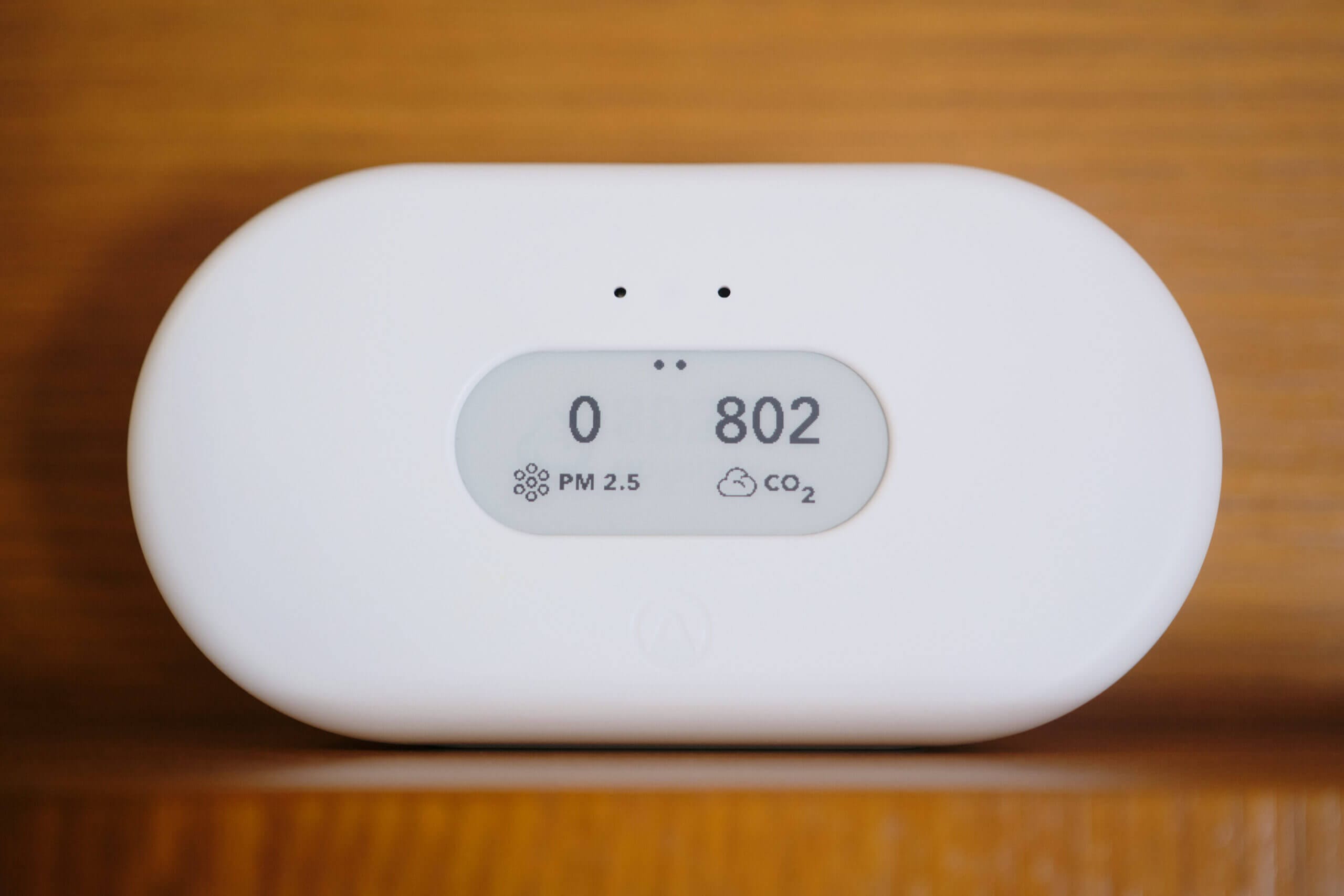
- Sensors: Temperature, humidity, CO2, motion, contact — all display as native HomeKit sensors and can trigger automations in Apple Home.
- Binary sensors: Motion, door/window contact, etc. Work as triggers in Apple Home automations.
What Doesn't Work Well
- Media players: Limited mapping to HomeKit's media control capabilities. Use AirPlay or direct integration instead.
- Fans: Speed control is finicky in some cases. On/off works; multiple speed settings can be inconsistent.
- Custom components: If an entity is from a custom HACS integration and has a non-standard domain or attributes, it may not map to HomeKit correctly.
- Input helpers: Input booleans can be exposed as switches, but input numbers and input selects don't have clean HomeKit equivalents.
Troubleshooting Common Issues
Bridge doesn't appear when adding accessories in Apple Home:
- Make sure HA and your iPhone are on the same network (not guest network)
- Check that port 21063 (or your configured port) is not blocked by your router or firewall
- Restart the HomeKit integration: Settings → Devices → Integrations → HomeKit → Reload
- Restart Home Assistant fully
Devices show as "Not Responding" in Apple Home:
- This usually means HA is unreachable (down, rebooting, or network issue)
- Check HA is running at
homeassistant.local:8123 - If HA is running but bridge still shows disconnected, reload the HomeKit integration
Devices are duplicated or showing wrong names:
- Remove the bridge from Apple Home and re-add it
- In HA, delete the HomeKit integration and re-add it fresh
- Make sure entity names in HA are clean and unique
Some entities disappeared from Apple Home:
- They may have been removed from the "exposed" list in HA's HomeKit config
- Or the entity IDs changed (HA sometimes changes these on restart)
- Check Settings → Devices → HomeKit → Configure → Entities to verify what's included
One More Thing: Multiple Bridge Instances
You can run more than one HomeKit Bridge in HA — each on a different port, exposing different entities. This is useful if you want separate bridges for different parts of the home, or if you've hit HomeKit's 150-accessory limit per bridge.
To add a second bridge: Settings → Devices → Add Integration → HomeKit again. Choose a different port number (21064, etc.) and configure which entities it should expose.
The setup I use: one bridge for lights and switches, one for sensors and climate. Keeps the Home app organized and makes it easier to troubleshoot if one bridge has issues.
Once you've got this running, your smart home works on two levels. The complex logic and automation lives in HA. The simple control and Siri integration lives in Apple Home. The best of both.