Those $8-15 Wi-Fi smart plugs you see everywhere? Most of them run on Tuya firmware. That means you need an account. That means your plug is sending data to servers in China. That means a company you've never heard of now knows when you turn on your coffee maker and your bedroom lights go off.
I'm not interested in that story anymore. And if you're here, you probably aren't either.
Flashing Tasmota is the answer. It's open-source firmware that turns your cheap smart plug into a locally-controlled device with a web interface right on the plug itself. No cloud. No app. No data leaving your network. It takes about thirty minutes the first time you do it.
Let's walk through how.
What You'll Need
Hardware:
- A compatible smart plug (~$8-15). I recommend either an Athom pre-flashed plug (~$10) if you want to skip the hard part, or a CloudFree smart plug if you want to flash it yourself.
- For serial flashing method (which we'll cover), a USB-to-serial adapter (~$5) from Amazon. The CH340 adapters work great and are bulletproof reliable.
Software:
- A computer with a terminal (Mac/Linux) or PowerShell (Windows)
- Tasmota firmware (free, downloadable from tasmota.github.io)
- Esptool.py (the flashing utility)
- About thirty minutes and your patience
Network:
- Your home Wi-Fi credentials
- Optional but recommended: a local MQTT broker like Mosquitto running on a Raspberry Pi or Docker container
The Two Flashing Methods
There are two ways to flash Tasmota onto a smart plug. I'll cover both because they solve different problems.
Method 1: OTA Flashing with Tuya-Convert (No Soldering)
This is the easier path if it works for your device. Tuya-Convert floods the plug with data packets that trigger a firmware update mode. It's like hacking through the front door instead of picking the lock.
The catch: This only works on older Tuya devices. Tuya patched this vulnerability a while back, so any plug you bought in the last year or two probably won't be vulnerable.
If your device is vulnerable:
- Set up Tuya-Convert on a Linux machine (Raspberry Pi works great here). Clone the repository, install dependencies.
- Run the Tuya-Convert script and let it start a fake Tuya IoT server on your network.
- Put the smart plug into pairing mode by holding the button for seven seconds until it flashes quickly.
- The script will detect it and ask if you want to flash. Say yes.
- Select the Tasmota firmware variant that matches your plug's chipset.
- Wait three to five minutes while it flashes.
That's it. The plug reboots, drops off the fake server, and appears on your network running Tasmota.
The problem is that fewer and fewer plugs are vulnerable to this now. If you try it and the script doesn't see your plug, you'll need Method 2.
Method 2: Serial Flashing (Requires Soldering)
This is the surefire method. You're opening the plug, connecting four wires to tiny pads on the circuit board, and flashing over USB. It works on every Tasmota-compatible device because you're talking directly to the chip.
What to do:
Open the plug. Most smart plugs are glued together. Use a heat gun or hair dryer to soften the adhesive, then pry gently with a plastic spudger. Don't crack the case.
Locate the flash pads. You're looking for tiny copper pads labeled TX, RX, 3V3 (or VCC), and GND. Check the Tasmota device templates repository to find the pinout for your specific plug. The templates tell you which pins are which.
Solder four wires. This is the part that intimidates people. You don't need fancy equipment. A $20 soldering iron from Amazon, some solder, and steady hands work fine. If you've never soldered, watch a three-minute YouTube video first. You're just melting a tiny blob of metal—it's hard to mess up.
- TX on the board → RX on the USB adapter
- RX on the board → TX on the USB adapter
- 3V3 on the board → 3V3 on the USB adapter
- GND on the board → GND on the USB adapter
Connect to your computer. Plug the USB adapter into your laptop.
Download esptool.py and the Tasmota firmware. Most ESP8266 plugs use the generic Tasmota build. Some newer plugs use BK7231 chips instead—those need OpenBeken firmware, which is a separate project.
Flash the firmware using this command (adjust the port and file names for your setup):
esptool.py -p /dev/ttyUSB0 -b 460800 write_flash -fs detect -fm dio -ff 40m 0x0 tasmota.binWait. The process takes a minute or two. You'll see progress output. When it says "leaving...", you're done.
Remove the wires. Desolder them or just clip them off. You won't need them again.
Put the plug back together. Close the case and let any adhesive cure.
Configuring Tasmota
When you power on the plug after flashing, it creates a Wi-Fi access point called "tasmota-XXXX". Connect to that network from your phone or laptop.
Open a browser and go to 192.168.4.1. You'll see the Tasmota web interface. It's surprisingly capable—you can see voltage, current, power usage, and control the relay right from that page.
Now configure your actual Wi-Fi:
- Go to Configuration > Wi-Fi.
- Enter your network name and password.
- Save and let it reboot.
Once it's on your home network, you can find its IP address from your router. Go to that IP address in your browser and you'll see the same Tasmota interface, now running on your home network.
Getting It Into Home Assistant
This is the part where it becomes genuinely powerful.
If you have Home Assistant running, you can connect to the plug via MQTT. Set up an MQTT broker (Mosquitto is free and easy), then in Tasmota's interface go to Configuration > Other and set:
- MQTT Host: your Mosquitto server IP
- Client: something unique like "smartplug-office"
- Topic: "smartplug-office"
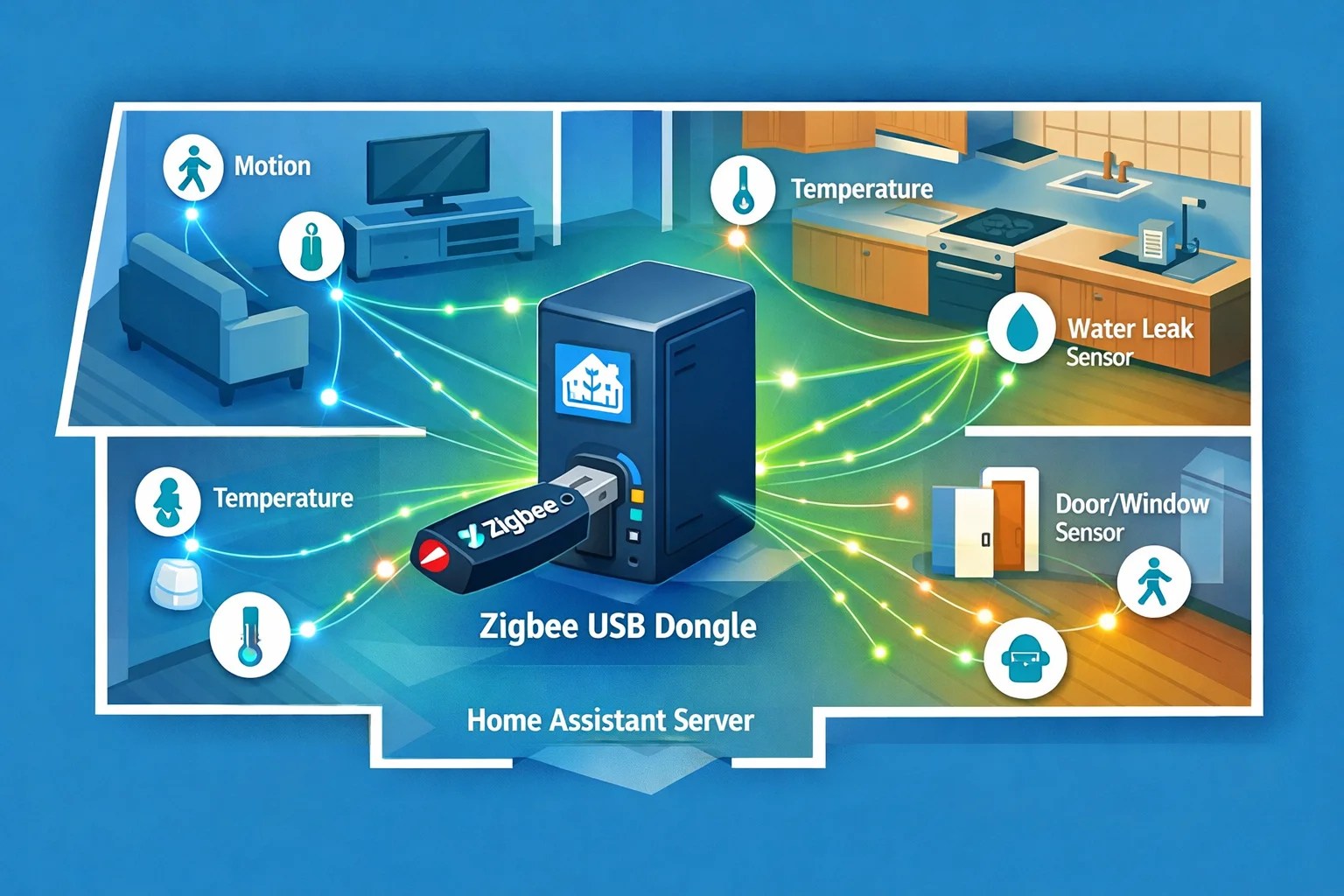
Home Assistant has an MQTT integration that auto-discovers Tasmota devices. Within a minute, your plug will show up in Home Assistant and you can automate it alongside your other devices.
Or, if you don't want to mess with MQTT, the Tasmota integration in Home Assistant can talk directly to the plug's HTTP API. Less efficient but it works.
Why This Actually Matters
You now have a device that you fully control. The plug runs a web server. You can make HTTP requests to it. You can set up automations directly on the plug (Tasmota has a scripting language built in). You can see exactly how much power your coffee maker is drawing. You can set schedules that work even if Home Assistant is offline.
Most importantly: your data stays on your network. The plug doesn't phone home. There's no cloud dependency, no company that can shut down the service tomorrow, no mysterious data collection.
I flashed about a dozen plugs over the last two years. Some went the Tuya-Convert route, some got the soldering treatment. They all work the same way now. They're just devices on my network, responding to HTTP requests and MQTT messages.
One Thing to Watch For
The Tasmota project supports hundreds of device templates, but not every smart plug in the world. Before you buy a plug specifically to flash it, check tasmota.github.io/devices to confirm your model is listed.
Also: newer BK7231-based plugs (some from Sonoff and Tuya) need OpenBeken instead of Tasmota. It's similar but different. The flashing process is the same—soldering the same four pads—but you'll be loading OpenBeken firmware instead.
The Payoff
Once you've done this once, you'll wonder why you ever relied on cloud apps for simple things like turning on a plug. You have complete visibility into what the device is doing. You can control it from anywhere on your network. You can integrate it into anything that speaks HTTP or MQTT.
It's the closest thing to owning your devices that exists right now.
Get a compatible smart plug on Amazon
Start with one or two if you're nervous. You'll get comfortable with it fast. And once you taste local control, you'll never want to go back to vendor apps again.